Real-time Control with Inference
This application measures performance of inferencing in a closed-loop control application. Inferencing is performed using openVINO on Intel® CPU, GPU, or NPU (Neural Processing Unit) to detect objects and pose. A simulator renders two copies of virtual gears and robot arms. One copy is controlled by the user, while the other copy is controlled by an application executing on a CODESYS software PLC runtime. The goal of the software PLC application is to synchronize the motion of the virtual objects. Closed-loop control is accomplished by using inferencing to measure the position of the objects, transmitting these measurements to the software PLC which uses a PID algorithm to calculate optimal motion adjustments, and transmitting the motion adjustments back to the simulator each cycle.
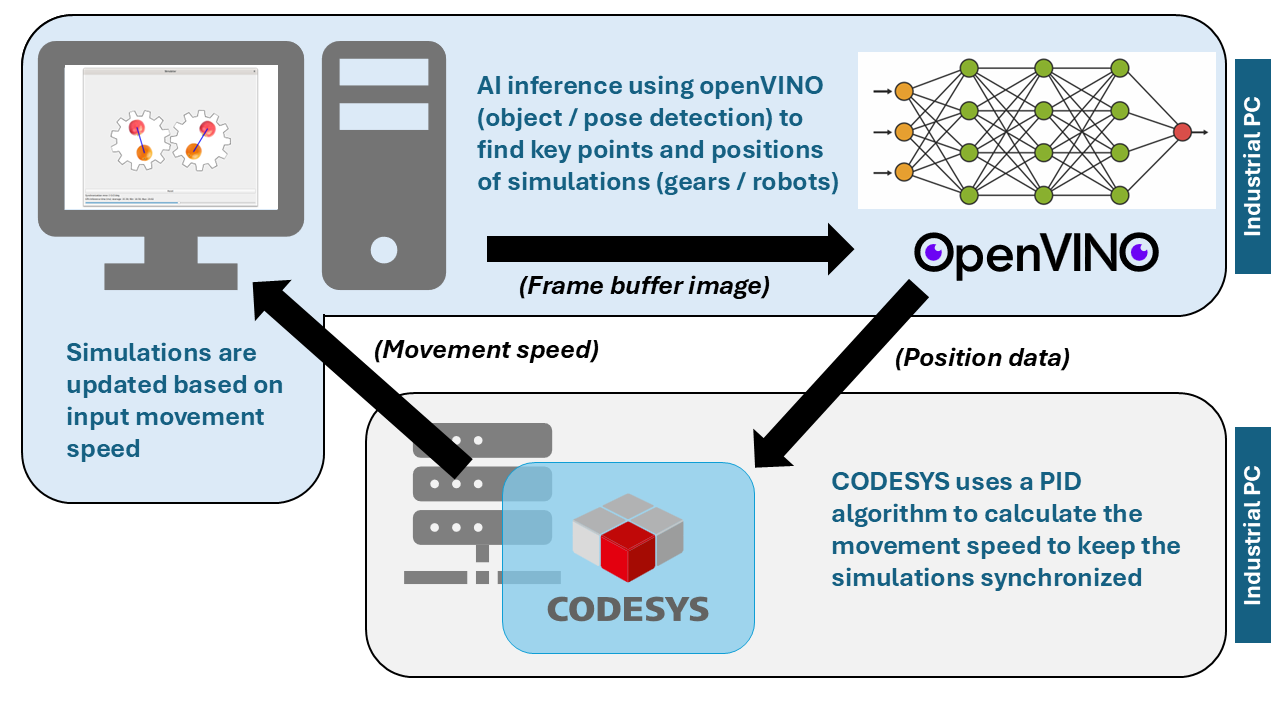
Table of Contents
RT Control with Inference Prerequisites
Procure a system which meets the minimum requirements below:
Specification |
Recommended |
Minimum |
|---|---|---|
Processor |
Intel® Core™ Ultra Processor |
11th Gen Intel® Core™ |
Operating System |
Canonical® Ubuntu® 24.04 (Noble Numbat) |
• Canonical® Ubuntu® 22.04 (Jammy Jellyfish)
• Debian 12 (Bookworm)
|
Linux kernel |
• v6.17 (NPU & GPU)
• v6.12 (NPU & GPU)
• v6.6 (NPU & GPU)
|
• v6.1 (GPU only)
• v5.15 (GPU only)
|
Follow Get Started Steps to prepare the system with BIOS optimizations and a real-time Linux environment.
Follow Install Linux Desktop Environment to install a graphical desktop environment (ex: GNOME, Mate, XFCE) if you do not already have one.
Install Intel GPU drivers
If you want to run openVINO inferencing applications on the GPU device of Intel® Core™ processors, you need to install the Intel® GPU driver and compiler tools.
Install the Intel® GPU driver and compiler tools:
$ sudo apt install libze1 libigdgmm12 libigc1 libigdfcl1 intel-opencl-icd libze-intel-gpu1
Install Intel NPU drivers
If you want to run openVINO inferencing applications on the NPU device of Intel® Core™ Ultra processors, you need to install the Intel® NPU driver. If your system does not have an Intel® Core™ Ultra Processor, you should skip this step.
General information on the Intel® NPU driver can be found on the Linux NPU Driver website. The driver consists of the following packages:
intel-driver-compiler-npu: Intel® driver compiler for NPU hardware; the driver compiler enables compilation of openVINO IR models using the Level Zero Graph Extension API.intel-fw-npu: Intel® firmware package for NPU hardware.intel-level-zero-npu: Intel® Level Zero driver for NPU hardware; this library implements the Level Zero API to interact with the NPU hardware.
Note
The installation instructions on the
Linux NPU Driver
website download the *.deb files for these components,
and install the packages from the downloaded files. In consequence, you
will not get any upgrades for these packages without manual interaction.
For this reason, it is better to use packages from an APT package feed,
as it is described in the following section.
The packages of the Intel® NPU driver are provided by the APT package feed, which you have added to your system when you followed the instructions to Install Intel GPU drivers. This APT package feed also provides all dependencies of the Intel® NPU driver packages.
Install the Intel® NPU driver:
$ sudo apt install intel-level-zero-npu intel-driver-compiler-npu
Add your user account to the
rendergroup:$ sudo usermod -a -G render $USER
Set the render group for
acceldevice:$ sudo chown root:render /dev/accel/accel0 $ sudo chmod g+rw /dev/accel/accel0
The previous step must be repeated each time when the module is reloaded or after every reboot. To avoid the manual setup of the group for the
acceldevice, you can configure the followingudevrules:$ sudo bash -c "echo 'SUBSYSTEM==\"accel\", KERNEL==\"accel*\", GROUP=\"render\", MODE=\"0660\"' > /etc/udev/rules.d/10-intel-vpu.rules" $ sudo udevadm control --reload-rules $ sudo udevadm trigger --subsystem-match=accel
Verify that the
/dev/accel/accel0device exists and that the device belongs to therendergroup:$ ls -lah /dev/accel/accel0 crw-rw---- 1 root render 261, 0 Jul 1 13:10 /dev/accel/accel0
Reboot to allow the user group changes to take affect:
$ sudo reboot
Install GUI System Dependencies
The simulator renders its window with PyQt5, whose xcb platform plugin depends on a few X11 helper libraries that are not always present on a minimal desktop install. Install them so the GUI can start:
Install the X11 helper libraries:
$ sudo apt install libxcb-cursor0 libxcb-xinerama0
Note
If the simulator aborts with
Could not load the Qt platform plugin "xcb", one of these libraries is missing.
Install RT Control with Inference Application
You can install this component from the ECI repository. Setup the ECI repository, then perform either of the following commands to install this component:
Perform either of the following commands to install this component:

- Install from meta-package
$ sudo apt install eci-inference-benchmarking
- Install from individual Deb package
$ sudo apt install rt-inference codesys-inference-rt-control codesys-benchmark-scripts
Note
The eci-inference-benchmarking package will install the companion CODESYS runtime and application. You may optionally install the CODESYS assets on a different system (assuming all systems can communicate with each other on the network) with the following packages: codesys-inference-rt-control and codesys-benchmark-scripts.
Setup Python Virtual Environment
This application consists of Python scripts and requires specific Python modules to be installed. Dependencies are managed with uv, which provisions the required Python 3.12 interpreter (downloading a managed build if the host lacks it) and installs the pinned requirements into a project-local virtual environment. launch.sh performs these steps automatically, so this manual setup is only needed when running simulator.py directly.
Install
uv:$ curl -LsSf https://astral.sh/uv/install.sh | sh
Note
Restart your shell (or
source ~/.bashrc) afterward souvis on yourPATH.Copy the application to your home directory:
$ cp -r /opt/benchmarking/rt-inference "${HOME}"
$ cd "${HOME}/rt-inference"
Create the
venv_simvirtual environment with Python 3.12:$ uv venv --python 3.12 venv_sim
Install the application Python requirements into the virtual environment:
Note
requirements.txtis a fully pinned dependency closure that ships the headless OpenCV build; installing with--no-depskeeps a resolver from pulling in the fullopencv-python, whose bundled Qt plugin clashes with PyQt5.--index-strategy unsafe-best-matchletsuvpull the CPUtorch/torchvisionwheels from the PyTorch extra index while taking every other package from PyPI.$ uv pip install --python venv_sim/bin/python --no-deps --index-strategy unsafe-best-match -r requirements.txt
Note
Depending on the system’s network speed, this step may take a few minutes to complete.
Activate the
venv_simPython virtual environment when running the simulator directly:$ source venv_sim/bin/activate
Run the RT Control with Inference Application
The simulator provides two types of simulations:
- Gears
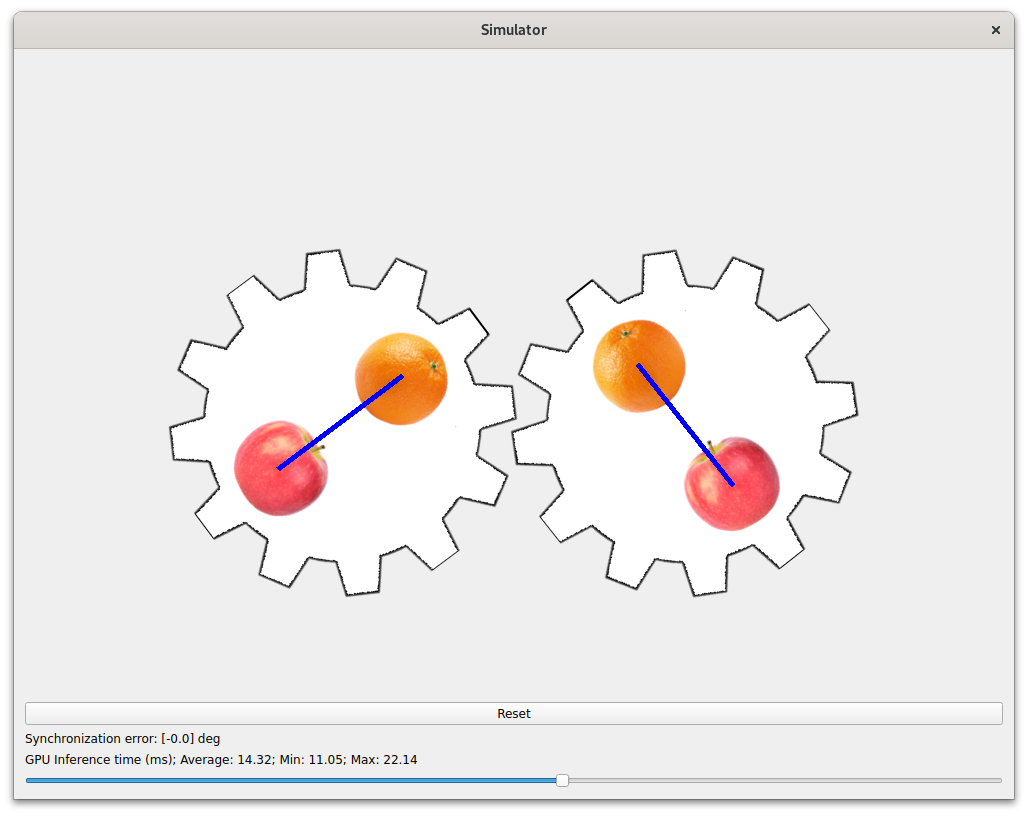
This simulation creates two virtual gears which mesh with each other. Each gear has images of an apple and an orange superimposed on it. The open-source YOLOv8 model is converted to openVINO format and used to detect the position of the apples and oranges, which is then used to calculate the position of the gears.
- Robots
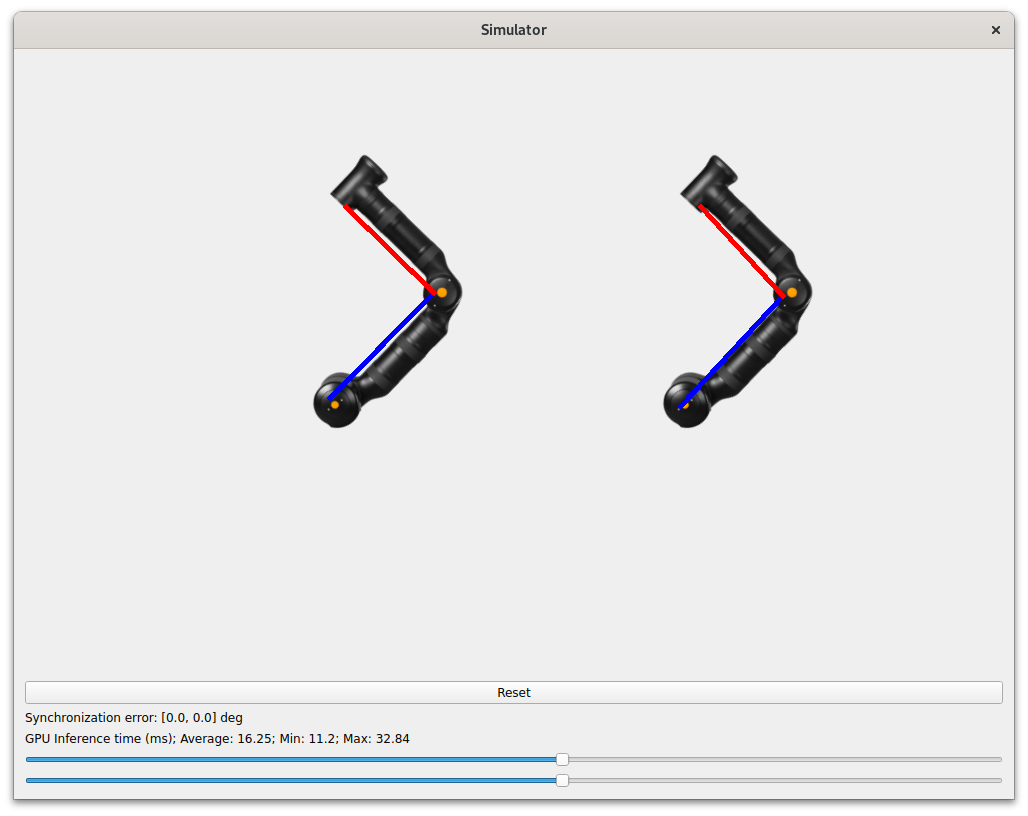
This simulation creates two virtual two-segment robot arms which mirror each others movements. A pre-trained model provided with this application is used to perform pose detection on the robot segments, which is then used to calculate the position of the robots.
Launch with Single-node Bare-metal CODESYS
This method runs a single simulation against a CODESYS runtime installed natively on the host. You start simulator.py interactively, configure the simulation and inference device from the launch screen, and optimize the bare-metal CODESYS runtime with the provided utility script. Use this method for a straightforward, single-node benchmark.
Execute the
start_codesys_native.shutility script to restart and optimize the CODESYS application:Note
If you installed CODESYS to a different system, execute this script on that system accordingly.
$ sudo /opt/benchmarking/codesys/utility/start_codesys_native.sh
The provided script performs the following runtime optimizations:
Uses Cache Allocation Technology (CAT) to allocate exclusive access of half the last-level cache to isolated cores (typically 1 & 3)
Assigns CODESYS task affinity to isolated cores (typically 1 & 3)
Assigns non-CODESYS task affinity to core 0
Disables kernel machine check interrupt
Increases thread runtime utilization to infinity
When executing the script, not all task affinity can be changed. This is expected behavior. An example output is shown below:
sudo /opt/benchmarking/codesys/utility/start_codesys_native.sh
Stopping unecessary services
Failed to stop ofono.service: Unit ofono.service not loaded.
Failed to stop wpa_supplicant.service: Unit wpa_supplicant.service not loaded.
Failed to stop bluetooth.service: Unit bluetooth.service not loaded.
Stopping Docker Daemon
Warning: Stopping docker.service, but it can still be activated by:
  docker.socket
Stopping Codesys Runtime
Disabling Machine Check
Disabling RT runtime limit
New COS default: 0xff0
Changing CPU affinity of existing interrupts
setting 1 to affine for core 0
setting 4 to affine for core 0
setting 8 to affine for core 0
setting 9 to affine for core 0
setting 12 to affine for core 0
setting 14 to affine for core 0
setting 16 to affine for core 0
setting 18 to affine for core 0
setting 27 to affine for core 0
setting 29 to affine for core 0
setting 120 to affine for core 0
setting 121 to affine for core 0
setting 123 to affine for core 0
setting 124 to affine for core 0
setting 125 to affine for core 0
setting 126 to affine for core 0
taskset: failed to set pid 3's affinity: Invalid argument
taskset: failed to set pid 4's affinity: Invalid argument
taskset: failed to set pid 16's affinity: Invalid argument
taskset: failed to set pid 23's affinity: Invalid argument
Starting Codesys Runtime
Changing affinity of Codesys Runtime tasks
Codesys preparation complete.
Launch the simulator application using the
simulator.pyscript:$ cd "${HOME}/rt-inference" $ ./simulator.py
When the simulator application first starts, a configuration page will appear:
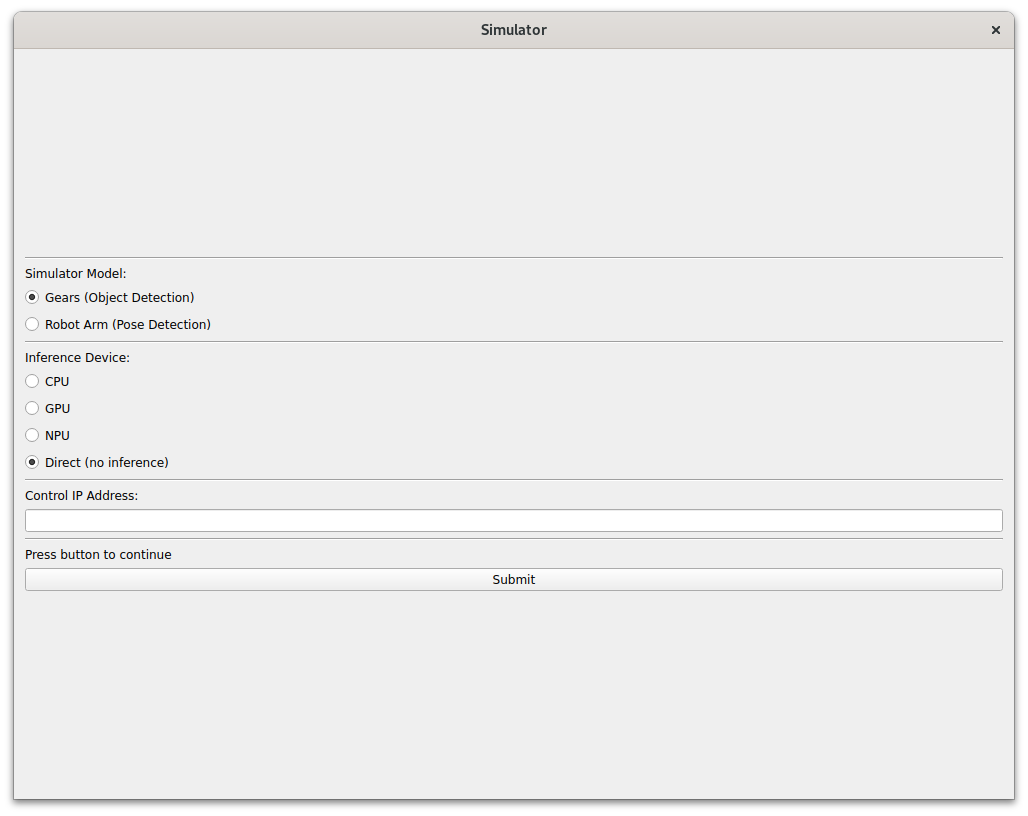
On this page, select which simulation type to run (
Gears, orRobots), and choose an inference device (CPU,GPU,NPU). The ``Direct (no inference)option will not use inference, but instead transmit the actual values to the CODESYS application directly. You may use this option to establish a maximum performance.Note
The inference devices are dynamically populated based on which devices are present on the system.
GPUand / orNPUmay not be present if the devices were not detected. There is a convenience script provided namedcheck_devices.pywhich lists all the available devices for inferencing.In the
Control IP Addressinput field, enter the IP address of the system executing the CODESYS runtime and simulator application. By default, this will be the current system, so enter127.0.0.1. If you installed thecodesys-inference-rt-controlpackage on a different system, then enter that system IP address instead.Click the
Submitbutton to continue. At this point, the simulator will convert the model for use with the selected device (CPU,GPU,NPU). This process can take a few seconds.If you choose an inference device, there should be indicator lines drawn onto the virtual objects. These lines indicate the calculated positions based on the inference result. These positions are transmitted to the CODESYS application which will attempt to keep the simulations synchronized.
Open a web browser and navigate to http://localhost:8080 (or the IP address of the system with CODESYS installed). If the CODESYS application is running, a page should appear as follows:
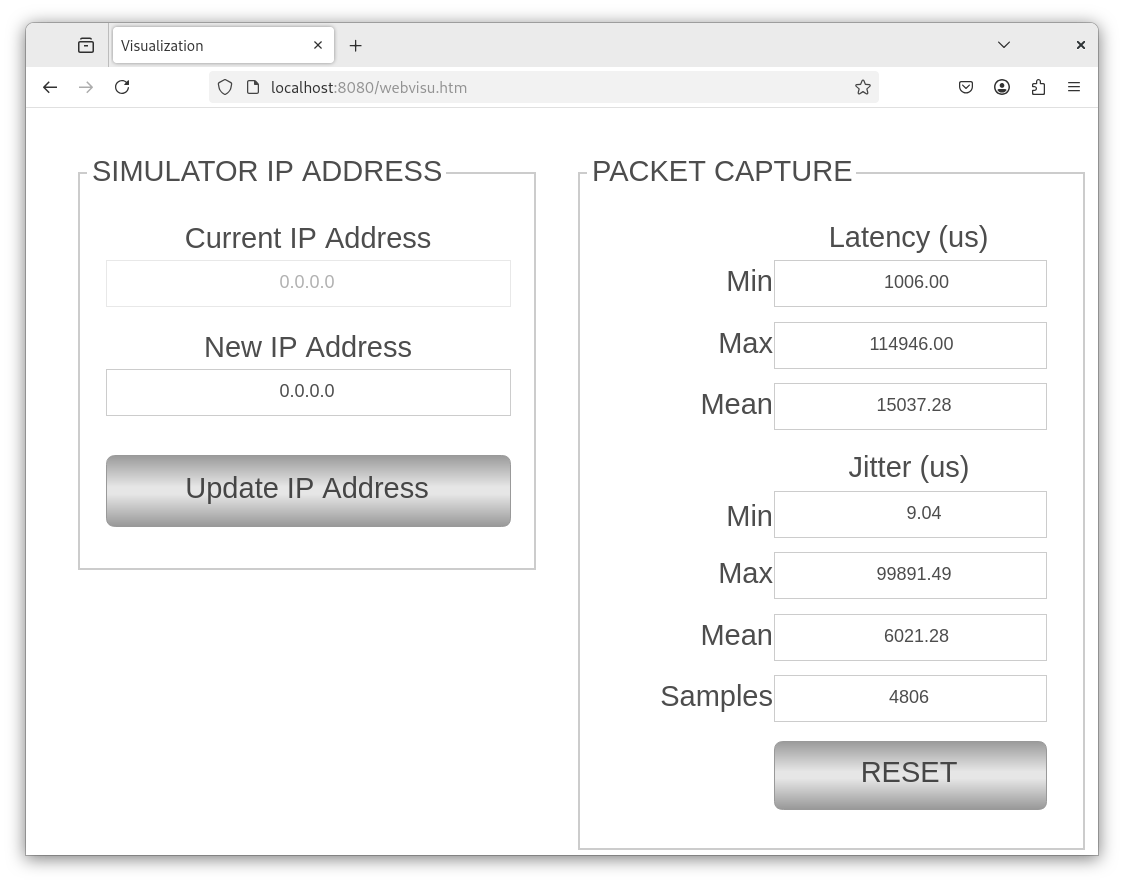
If the web page does not appear, perform the first step again to restart the CODESYS runtime.
Important
If the CODESYS application is executing on a different system than the simulator, use the
New IP Addressinput field and theUpdate IP Addressbutton to update the IP address to that system accordingly.The web page displays the timing statistics of packets received by the simulator. You may press the
RESETbutton to initialize the statistics. Verify that theSamplesvalue is increasing.Tip
If the
Samplesvalue remains zero, then communication between the CODESYS application and the simulator is not occurring. This is typically caused by firewall rules blocking ports. This application uses ports1080and1081over UDP. Ensure that these ports are not in use and are not blocked by the firewall. You may also find that restarting the CODESYS runtime helps.Return to the simulator visualization. On the simulator page, there is one or two slider inputs (depending on the simulation chosen). Move the slider(s) to modify the rotation speed of the object(s). If the inferencing and CODESYS application are executing quickly enough, then synchronization of the objects should be possible within 5 degrees.
(Optional) Restart the simulator and choose a different inference device to compare the performance on your system.
Launch with Multi-node Containerized CODESYS
This method runs each CODESYS control runtime inside its own container so that multiple simulations can execute concurrently on a single host. The launch.sh script orchestrates the entire closed loop: it starts one container per simulation, bridges UDP traffic between each container and the simulator through a per-simulation relay, provisions the Python virtual environment with uv, launches the simulator, and tears everything down on exit. Use this method to benchmark several simulations at once.
Install Docker on the target system, if not already done.
Build the container image for the multi-node containerized CODESYS setup:
$ cd /opt/benchmarking/codesys/docker
$ docker build -f ./Dockerfile.controlruntime \
      -t codesyscontrol:4.11.0.0 . \
      --build-arg ECI_DEB=codesys-inference-rt-control \
      --build-arg CDS_VERSION=4.11.0.0
Launch the closed loop with the
launch.shscript. It must be run as root (sudo) because it enters network namespaces and manages containers and host services.uvmust be installed for the invoking user (see Setup Python Virtual Environment); the virtual environment itself is created automatically on first run.$ cd "${HOME}/rt-inference" $ sudo ./launch.sh
The
launch.shscript accepts the following options:Option
Description
-n, --num-sims NNumber of simulations / containers (default:
1).-t, --types LISTComma separated per-sim type:
gearsorrobot; the last value repeats (default:gears).-d, --devices LISTComma separated per-sim inference device:
CPU,GPU,NPU,AUTO, ordirect; the last value repeats (default:CPU).--raw-inputFold preprocessing into the model and feed raw frames.
--int8Quantize the model to INT8 (NNCF PTQ).
--legacyInference the way the legacy version did (synchronous).
-v, --verboseVerbose simulator logging.
--cds-version VCODESYS image tag to run (default:
4.11.0.0).-h, --helpShow help and exit.
The following examples demonstrate common invocations:
# Single gears simulation on the CPU (defaults)
$ sudo ./launch.sh

# Two simulations: gears and robot, running on GPU and NPU
$ sudo ./launch.sh -n 2 -t gears,robot -d GPU,NPU

# Four CPU simulations with INT8 quantization and verbose logging
$ sudo ./launch.sh -n 4 -d CPU --int8 -v

# Pin a specific CODESYS image tag
$ sudo ./launch.sh --cds-version 4.11.0.0
The simulator opens with one tab per simulation and begins transmitting measurements to the containerized CODESYS runtimes, which return motion adjustments to keep the simulations synchronized. Adjust the rotation-speed slider(s) on each tab to exercise the closed loop.
Note
This application uses ports
1080and1081over UDP (offset by10per simulation). Ensure that these ports are not in use and are not blocked by the firewall.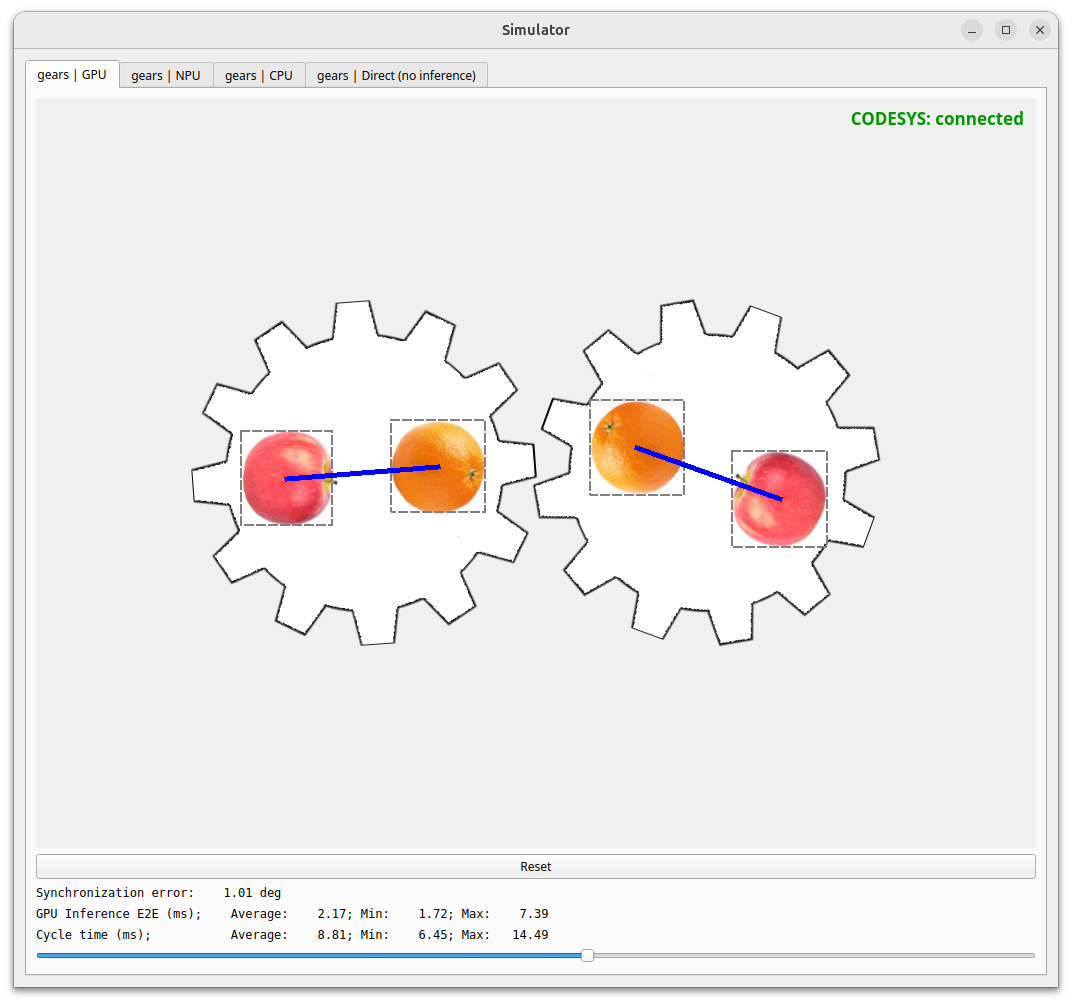
Press
Ctrl+Cin the terminal (or close the simulator window) to stop the benchmark. Thelaunch.shscript tears down the simulator, the UDP relays, and every CODESYS container automatically on exit.