RTH GPOS Alternative Microsoft Windows Desktop
The eci-rth meta-package makes generic assumptions about the desired Microsoft* Windows* Desktop GPOS. Modification to the RTH configuration templates /boot/rth/WindowsEFI_Linux64.txt or /boot/rth/pos-rt/WindowsEFI_Linux64_<nvme0n1pY|sdY>.txt and /boot/rth/pos-xe/WindowsEFI_Linux64_<nvme0n1pY|sdY>.txt instances may be necessary for customizing the GPOS.
Note: EFI installations of Microsoft Windows older than Windows 10 or Microsoft Windows Server 2016 are not supported and need to be installed on legacy BIOS. The Microsoft Windows Desktop RTH virtualized-mode GPOS is installed as a UDMF driver when the setup MSI script is run.
Step 1: Complete the Prerequisites
Make sure that Windows 10 is installed and meets the following requirements:
Grub installation for Windows is based on EFI
In the Windows installation, SATA mode is set to AHCI mode in BIOS.
Step 2: Edit RTH Windows settings manually
Extract to
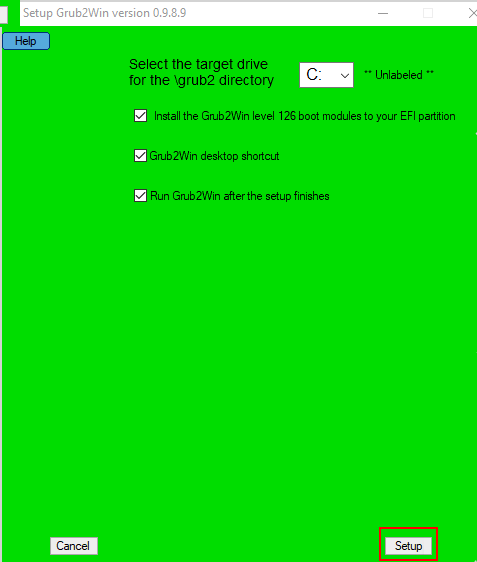
Grub\Windows\grub2win\0.9.8.9and double-clicksetup.exe.In the dialog that appears, click Setup.
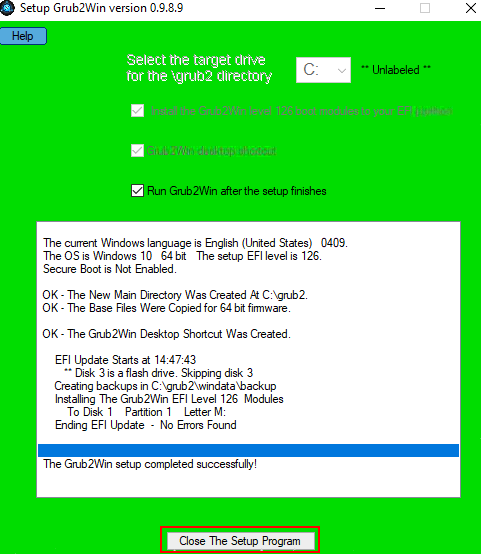
After the set up is complete, click Close The Setup Program.
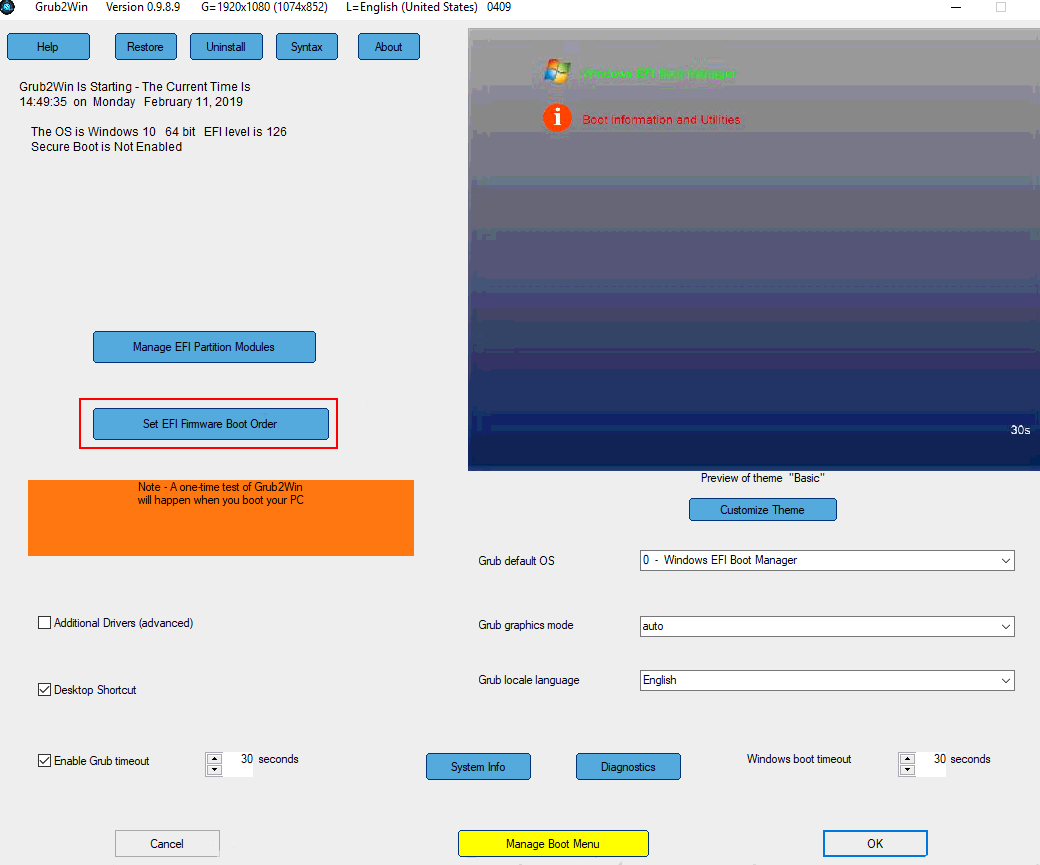
From the Windows Start menu or desktop, open the grub2win application.
To set up or change the boot order, click Setup EFI Firmware Boot Order.
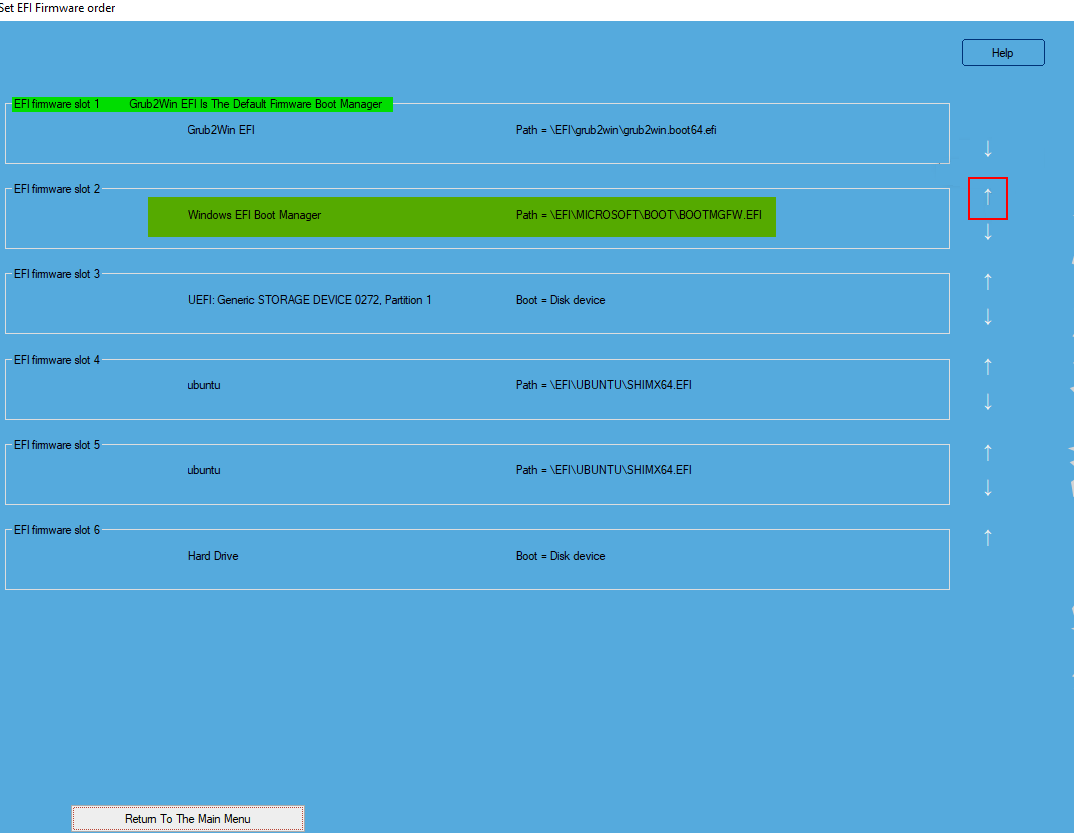
In the Set EFI Firmware order screen, click the upward arrow corresponding to EFI firmware slot2.
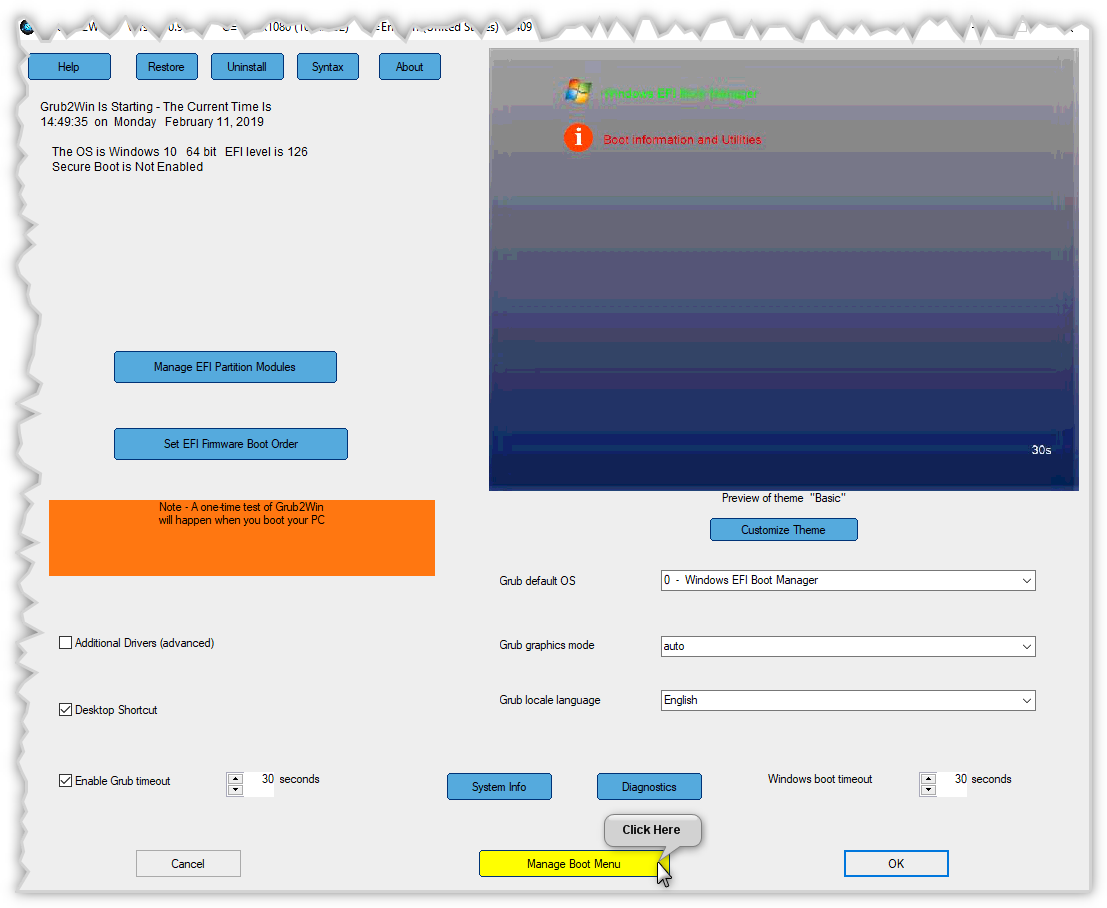
Click Manage Boot Menu to create a new grub entry, or to copy and modify an existing entry.
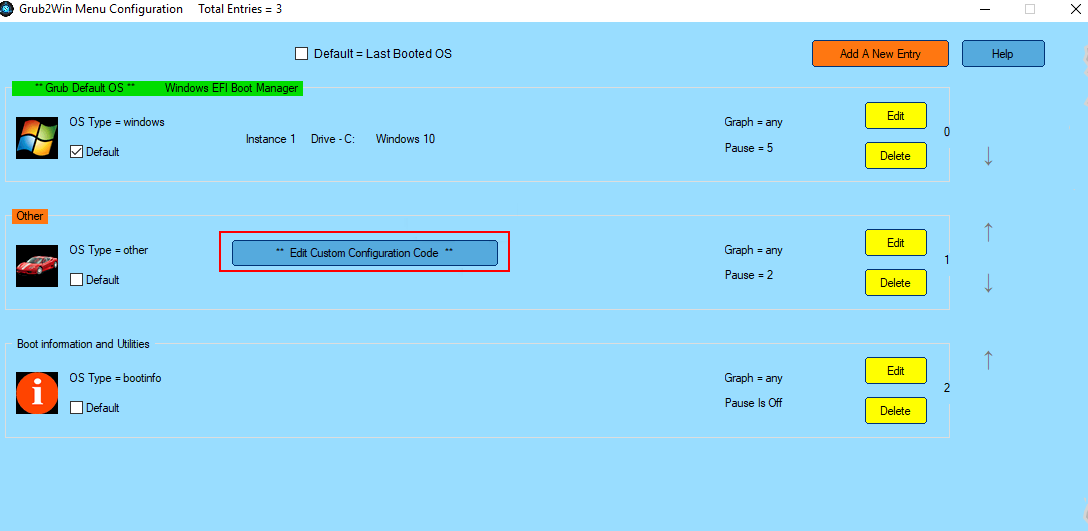
To modify an existing entry, in the Menu Configuration screen, click Edit Custom Configuration Code.
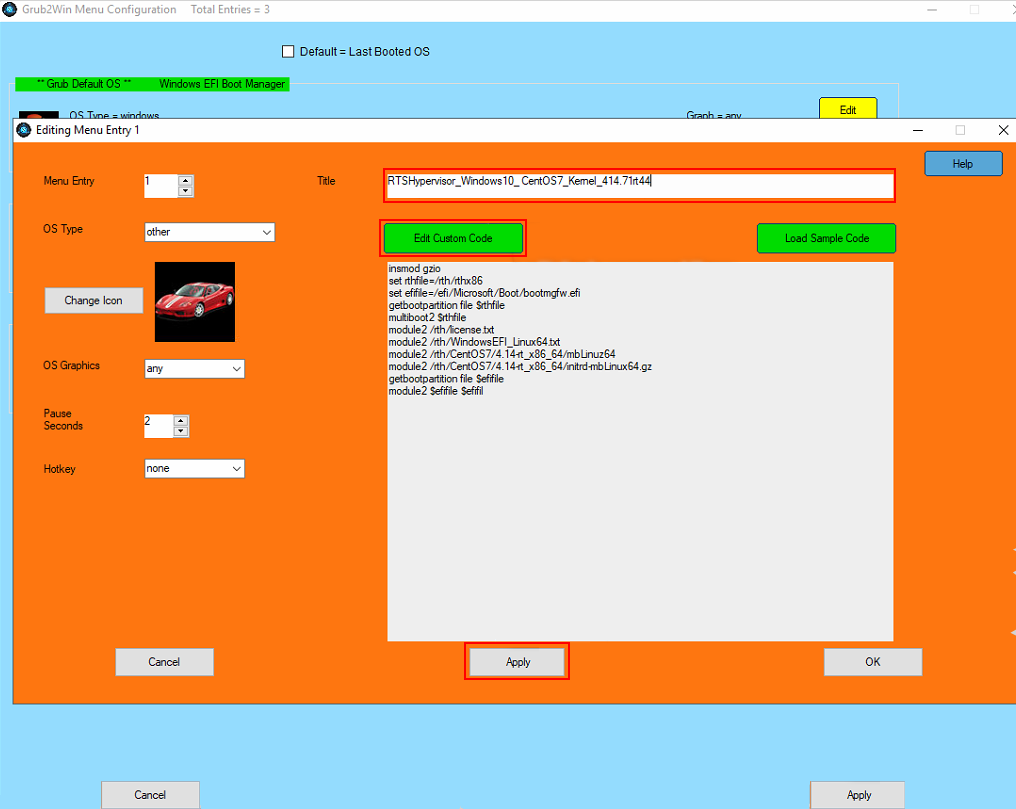
You can change the Title, for instance, Real-Time Hypervisor - Windows 10 Pro & Control-Stack 1.0 BKC. To edit the Grub command lines, click Edit Custom Code. After updating, click Apply.
Edit the
custom.temp.txtfile using a default editor. Add the new menu entry:Configure
/rth/rthx86as kernel.Configure
/rth/license.txtand/rth/Windows_Linux64.txtas modules.Configure Linux kernel (vmlinuz) and ramdisk (initrd) as modules.
Configure any other operating system images to be started by the Hypervisor as modules.
insmod gzio
set rthfile=/rth/rthx86
set efifile=/efi/Microsoft/Boot/bootmgfw.efi
getbootpartition file $rthfile
multiboot2 $rthfile
module2 /rth/license.txt
module2 /rth/WindowsEFI_Linux64.txt
module2 /rth/mbLinuz-5.4.59+gitAUTOINC+b8c82ba373_3747758c5c-r0-intel-corei7-64-20201125084606.bin mbLinuz64
module2 /rth/ecs-image-base-poky-rth-initramfs-intel-corei7-64-20201126164655.rootfs.cpio.gz initrd-mbLinux64.gz
getbootpartition file $efifile
module2 $efifile $efifile
Apply the changes.
Set up the Hypervisor. Do the following to set up RTH:
From the Real-Time Hypervisor Software Release Package
Hypervisorfolder copy all files including sub-directories and their content into the folderC:\rth.Open the Hypervisor configuration file
C:\rth\WindowsEFI_Linux64.txt.Note: Make sure that the configured image names are identical to the module names in
grub.confrespectively. Modify the Linux command line by changing thebootlineentry in the Hypervisor Configuration File (HCF)WindowsEFI_Linux64.txt.Note: Configure your Linux Kernel (vmlinuz) as
image_0and your ramdisk asimage_1.Your RTS x86 Hypervisor configuration file now should look similar to this:
    # RTH CONFIG
    ################################################################################
    # System
    #
    [/SYSTEM]
        "IOMMU"          = uint32: 0    # set to 1 to restrict device memory access
        "security_level" = uint32: 0    # set to 1 to restrict API permissions
        "CPU_resource_partitioning" = uint32: 0     # set to 1 to optimize
                                                    # CPU resource usage
    ################################################################################
    # OS
    #
    [/OS/0]
        "name"          = "Windows Desktop"
        "boot_priority" = uint32: 2     # start after Linux
        "virtualized"   = uint32: 1
        "memory_size"   = uint64: 0x100000000    # 4GB
        "trace_partition_number" = uint32: 0    # write log to /SHM/0

        [/OS/0/RUNTIME/0]
            "image_0" = "bootmgfw.efi"

    [/OS/1]

        "name"          = "Privileged RTOS"
        "boot_priority" = uint32: 2             # start second
        "memory_size"   = uint64: 0x80000000    # 2000 MB
        "virtual_MMU"   = uint32: 1             # set to 1 to restrict memory access
        "restricted_IO" = uint32: 1             # set to 1 to restrict I/O access
        "CPU"           = bytelist: 3,4           # e.g. two CPUs: bytelist: 3, 4

        "virtual_COM-to-log_port" = uint32 : 0x3F8
        "trace_partition_number" = uint32: 1    # write log to /SHM/1

        [/OS/1/RUNTIME/0]

            "bootline" = "diskroot=/dev/hda4 ip=192.168.2.2:::::vnet0  debug=all verbose=all random.trust_cpu=on console=tty0 console=ttyS0,115200n8"
            "image_0"  = "mbLinuz64"
            "image_1"  = "initrd-mbLinux64.gz"

    ################################################################################
    # Interrupts
    #
    [/IRQ]
        "default" = uint32: 0   # default is Windows

    ################################################################################
    # PCI
    #
    [/PCI]
        "default" = uint32: 0   # default is Windows

        "auto_interrupt_mode" = uint32: 1   # automatically use MSI to avoid conflicts

    # i225 Device assignment with vendor ID / device ID and MSI Mode
    [/PCI/0]
        "OS"         = uint32: 1
        "vendor_ID"  = uint32: 0x8086
        "device_ID"  = uint32: 0x15f2
        "interrupt_mode" = uint32: 2

    # i210 Device assignment with vendor ID / device ID and MSI Mode to Yocto linux-rt
    [/PCI/1]
        "OS"         = uint32: 1
        "vendor_ID"  = uint32: 0x8086
        "device_ID"  = uint32: 0x1533
        "interrupt_mode" = uint32: 2
    ...

    ################################################################################
    # Shared Memory
    #
    [/SHM/0]
        "name" = "trace_windows"
        "size" = uint64: 0xF000

    [/SHM/1]
        "name" = "trace_1"
        "size" = uint64: 0xF000


**Note**: Optionally, add ``ip=W.X.Y.Z/A.B.C.D`` to your ``bootline``.
    Replace W.X.Y.Z with an IP address and A.B.C.D with a subnet mask that you want to assign to the *vnet* adapter in Linux.
    If you omit the ``ip=`` parameter, then the default address is used.
Step 3: Install RTH Windows Virtualized-mode BSP
From the
\BSP\Windowsfolder within the Real-Time Hypervisor Software Release Package, copy the fileSetup.exeto the folderC:\rth\. Double-clickSetup.exeand follow the instructions.Note: The
Setup.exefile contains all files for 32Bit and 64Bit versions of Windows. It replaces the MSI installers used in previous releases. If you need MSI or MSM files, contact technical support at Real-Time Systems.Shut down and restart the system. Select the new configuration entry in boot loader menu. Note that after rebooting, you should see a boot menu with multiple boot options, such as “Windows 10” and “Real-Time Hypervisor - Windows 10 Pro & Control-Stack 1.0 BKC”.
Start the Hypervisor configuration with two operating systems.
From the command prompt, you should now be able to ping your second operating system at the following default IP Address of 192.168.2.2 (
ping 192.168.2.2).Execute the
readtrace.exeprogram in a command prompt to view the boot messages of the hypervisor, and detailed information about your system.